
During a recent customer engagement for a Virtual Infrastructure build out I was tasked with deploying an Isolated/Air Gap Update Manager Download Service architecture. If you do not know what an isolated Update Manager Download Service is then read this article first before carrying on. I came across a few hurdles during this deployment and so i waned to create a quick reference of what I followed for my future reference and to hopefully help anyone who gets the problems I was getting during the setup
- For this setup, I got a service account created that would be used for the installation of VUM and the UMDS.
- For my setup I setup VUM and UMDs on their own dedicated servers as you obviously have to do as the UMDS has to be in the DMZ.
- For the installation of UMDS I followed the following steps from the vSphere 5 Documentation Center.
- Next I installed VUM following the steps detailed from this vSphere 5 Documentation Center article.
- Note: The first hurdle I hit in this installation was that the SQL Client for SQL 2012 doesn’t work for the ODBC connections so I had to install the SQL 2008 Client from here for it to show the ODBC configuration when I went through each of the installations.
- Next was the configuration of UMDS and I followed this vSphere 5 Documentation Center article.
- Next was the creation of the IIS server for the UMDS so that VUM can contact and download the patches. I followed this vSphere 5 Documentation Center article.
- Next was the exporting of the downloaded patches to the UMDS folder under the IIS website (for mine I did a virtual directory to a folder on my data drive so that the c drive was not filled up with patches.)
- Note: For the exporting, I kept getting an error as detailed in this VMware Communities discussion I created. As detailed in the discussion the problem was I had to set the folder location as my default export store by running vmware-umds -S –default-export-store <your path to the UMDS folder>.
- Then you can export the patches to the folder location by running: vmware-umds –E <your path to the UMDS folder>.
- Now you can go into your vCenter and setup the UMDS as your shared repository location by pointing to the IIS website you created for the UMDS folder

- Note: For the downloading of the patches I kept getting a failure where the downloading patches task would get stuck at 50% for a few minutes and then fail stating “Cannot download patch definitions” as shown below.
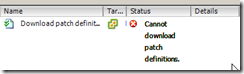
2. The problem here was that the service account running the VUM service on the VUM server did not have full permissions to the folder. After reapplying the patches the downloading of the patches worked

After going through all of the above steps, my air gap Update Manager Download Service was now setup ![clip_image004[1]](https://thesaffageek.co.uk/wp-content/uploads/2012/08/clip_image0041.png "clip_image004[1]")
I hope that this saves someone the headaches I had along the way
Gregg
 TheSaffaGeek
September 7, 2012 at 6:27 pm
I’m getting Cannot download patch definitions error. What folder does the service account need full permissions to?
September 11, 2012 at 7:58 am
Hi
It needs access to the folder where you are downloading your patch definitions down to. In my instance it was the UMDS folder
Gregg
January 12, 2016 at 3:43 pm
I have this exact issue with 6.0. My VUM is in an AD internally with the VUM service running as System. The UMDS server is in a workgroup in the DMZ. Whilst System has full control over the folder structures on my VUM and UMDS, the issue persists. I can browse the UMDS with IE from the VUM and can see all the updates there. Any further suggestions I can try?
Rgds
January 23, 2016 at 11:01 am
Have you made sure all the required ports are open between the two?